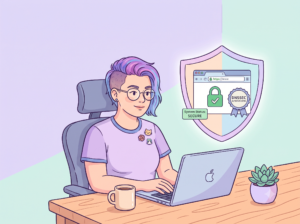
You just received an email that looks official but feels unexpected. Maybe it’s asking you to set up an account, verify your identity, or click a link. Before you do anything, take five minutes to walk through these steps.
None of this is meant to alarm you — phishing is one of the most common ways businesses and individuals get caught out, and the good news is that spotting it comes down to a few simple habits. This process works for any suspicious email, whether it claims to be from a vendor, a bank, a government agency, or a business partner.
Don’t Click Anything Yet
Resist the urge to click any links or open any attachments. Phishing emails are designed to create urgency — phrases like “activate your account,” “verify immediately,” or “your account will be suspended” are meant to get you to act before you think.
Take a breath. A legitimate email will still be valid in 10 minutes.
Check the Sender’s Email Address
Look at the full “From” address — not just the display name. Email programs often show a friendly name like “Alphabet/Google” while hiding the actual address behind it.
What to look for:
- Does the domain (the part after the @) match the company the email claims to be from?
- Watch for subtle misspellings or extra words — @ariba.com is very different from @ariba-support-login.com.
- A legitimate-looking domain doesn’t guarantee the email is real (addresses can be spoofed), but a suspicious domain is an immediate red flag.
Hover Over the Links
Without clicking, hover your mouse over any links or buttons in the email. A small preview should appear (usually at the bottom of your email window or near your cursor) showing the actual web address the link will take you to.
What to look for:
- Does the URL match the company that supposedly sent the email?
- Is the domain a well-known, recognizable one (like ariba.com or google.com)?
- Be cautious of long, messy URLs with random strings of characters, or domains that look “close but not quite” to the real thing.
Tip: If you’re on a phone, press and hold the link (don’t tap) to preview the URL.
Search for It Independently
Open a new browser tab and search for the subject line of the email or the main claim it’s making. For example, if the email says “Company X is moving to a new invoicing platform,” search for exactly that.
What to look for:
- Do results from the company’s own website or official help pages confirm what the email says?
- Are there news articles, press releases, or support documents that back up the email’s claims?
- If you can’t find anything at all about the topic, that’s a warning sign.
This step is powerful because it takes you completely outside the email. You’re verifying the claim using sources the sender can’t control.
Go to the Source Directly
If the email asks you to log in, register, or take action on a specific platform, go to that platform yourself — by typing the address directly into your browser, not by clicking the link in the email.
For example, if an email says you have a new invoice on a vendor portal, navigate to that portal on your own and check. If the request is legitimate, you’ll see it there.
Verify Through a Trusted Channel
If the email references a specific person, company, or business relationship, reach out to them directly using contact information you already have — not the contact info provided in the email.
A few ways to do this:
- Call your contact at the company using a phone number from your own records.
- Send a separate email to someone you’ve worked with there, using an address you’ve used before.
- Ask your team: “Are we expecting this? Does anyone have a relationship with this company?”
When in Doubt, Slow Down
If you’ve gone through these steps and you’re still not sure, the safest move is to pause rather than push forward. Loop in a colleague, your IT provider, or someone you trust to take a second look at the technical details — things like email headers and link destinations — before you act.
It is always better to ask than to click something you’re unsure about.
Quick-Reference Checklist
☐ Did I resist the urge to click before verifying?
☐ Did I check the full sender email address for anything suspicious?
☐ Did I hover over links to preview where they actually go?
☐ Did I search independently to confirm the email’s claims?
☐ Did I go directly to the platform or website (not through the email’s link)?
☐ Did I verify through a trusted contact if needed?
☐ If still uncertain, did I ask someone to take a second look?
Red Flags That Should Always Make You Pause
- The email creates a strong sense of urgency or threatens consequences.
- You’re asked to provide passwords, payment info, or personal details via email.
- The greeting is generic (“Dear Customer”) rather than using your name.
- The email has spelling or grammar errors that seem unusual for a professional company.
- The “reply-to” address is different from the “from” address.
- You weren’t expecting the email and don’t recognize the business relationship.
Green Flags That Increase Confidence
- The sender domain matches the real company and passes your hover-check.
- Independent research confirms the email’s claims through official company sources.
- The link destinations match the expected platform when you hover.
- You can verify the request by logging into the platform directly.
- A known contact at the company confirms they sent it.
The Bottom Line
Phishing works by getting you to react quickly. The simplest defense is to slow down and verify before you click — a habit that only takes a few minutes and can save you from a serious headache. Share these steps with your team, and they’ll become second nature in no time.
Want to chat about your business security needs? Schedule time with us here.
Stay safe 🩷
Geek Girl Tech is a women-owned cybersecurity firm built for mission-driven organizations — and the women changing the industry from the inside.